
Reset the Hall of Fame
How to clear the kiosk leaderboard — all kiosks at once, a single kiosk, or from the app.
There is no reset button. Moving the leaderboard's start date to today empties the ranking. No records are deleted, and you can switch back at any time.
Start on this screen
1In the CPR cloud web menu, open Manage Kiosks → Standby Screen Settings.
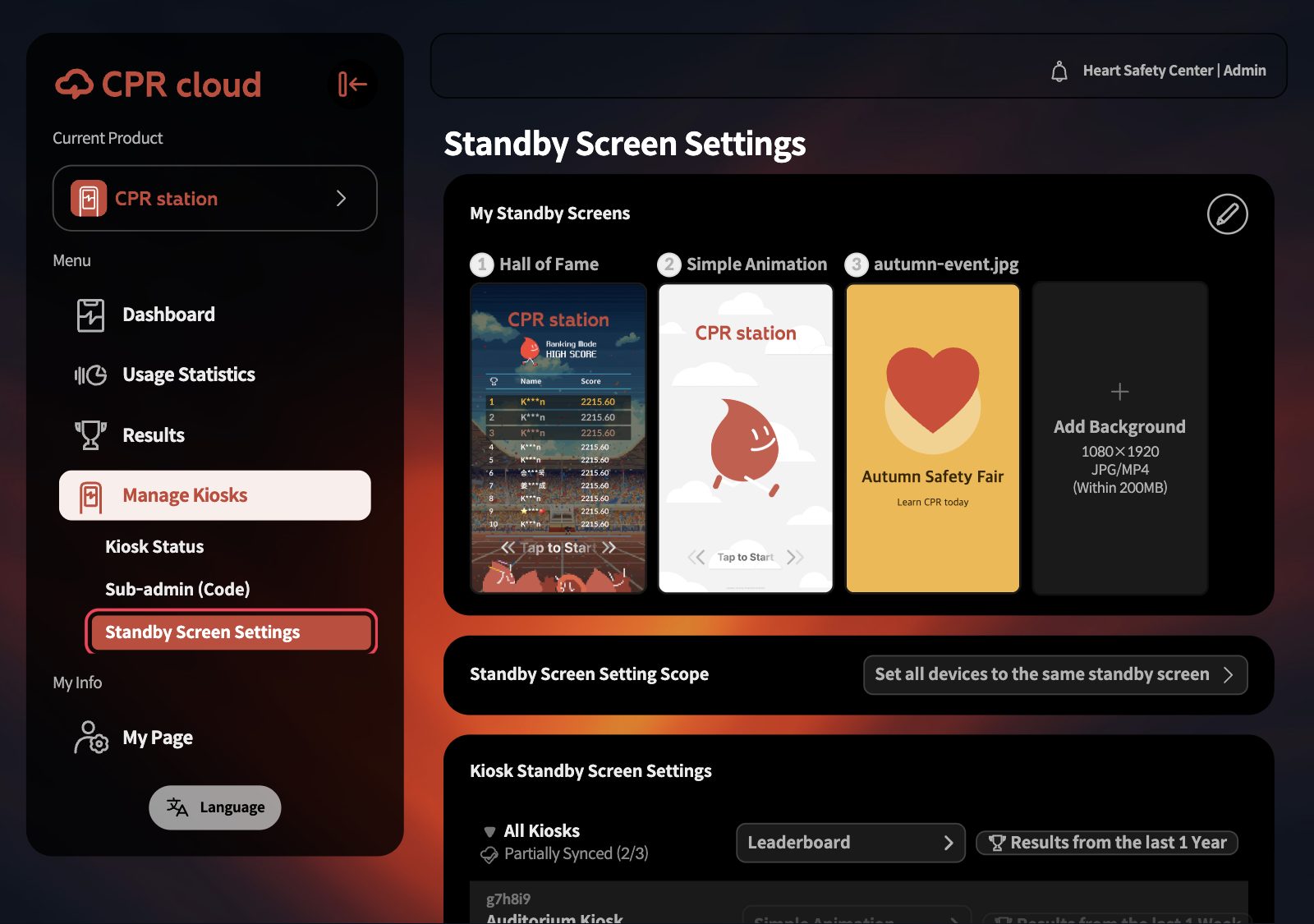
AAll kiosks at once
1Scroll down and click the trophy button on the All Kiosks row. The button shows the period currently in effect.
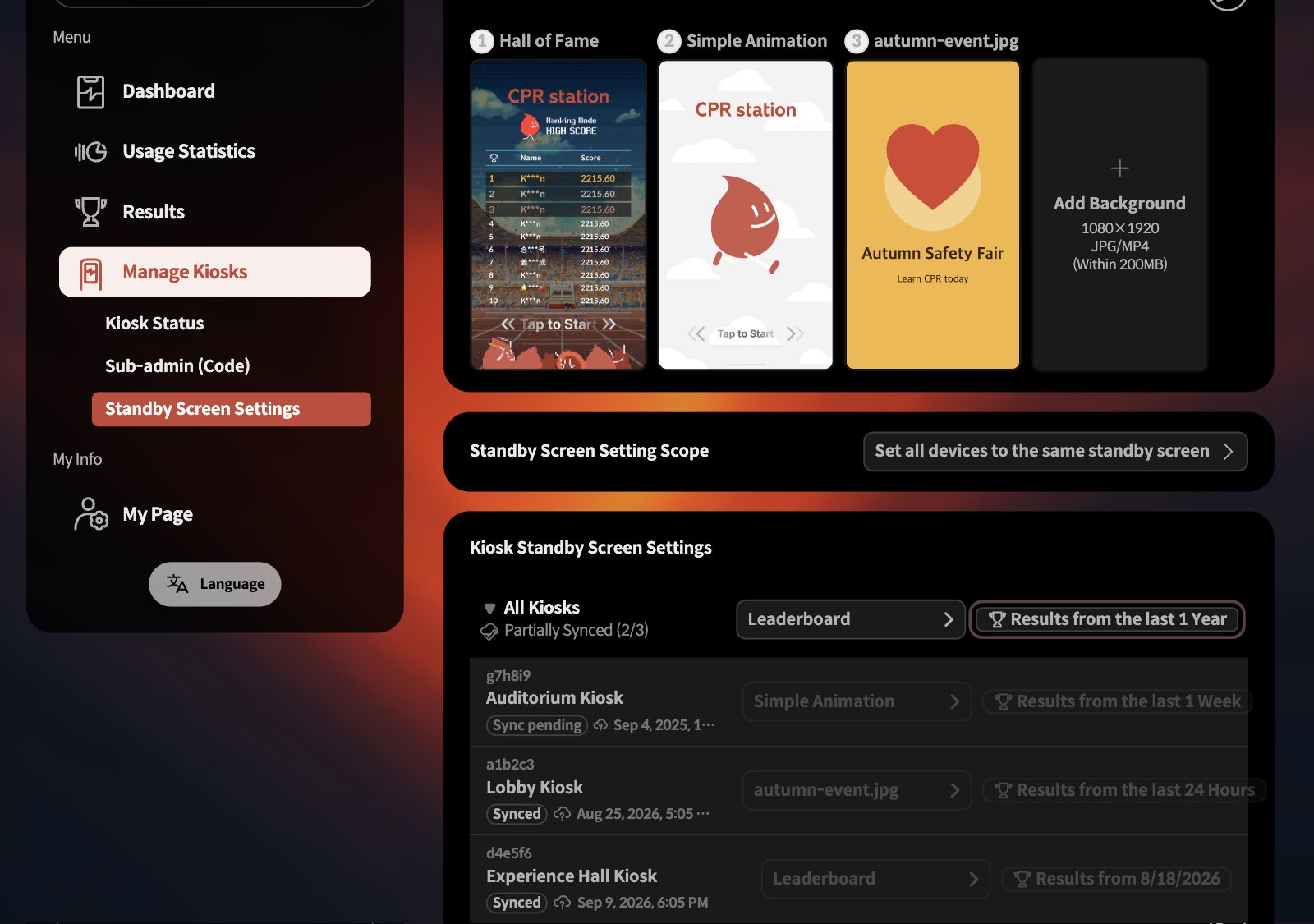
2Choose Results since specific date, pick today in the calendar, then click Set.
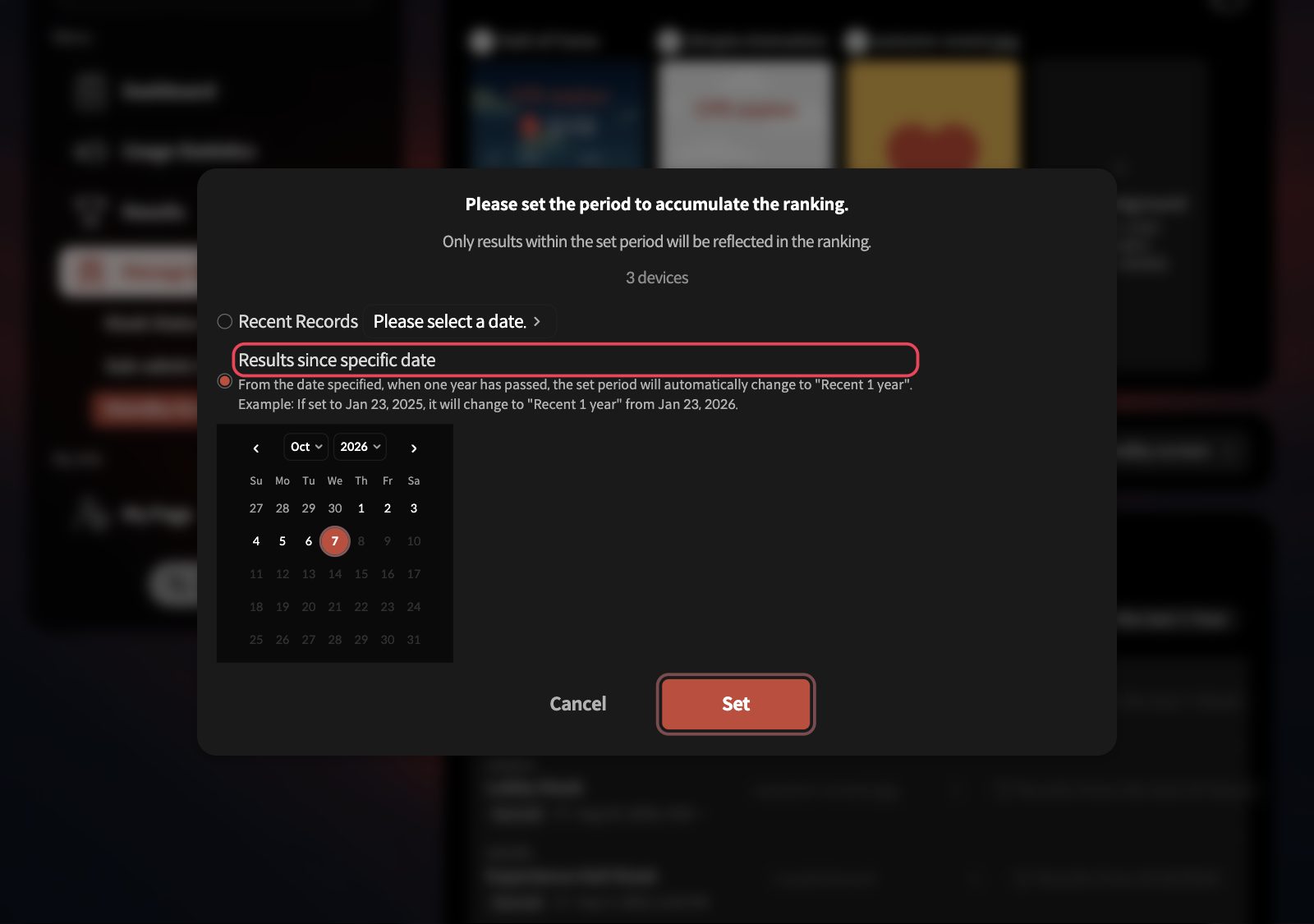
3You are done when the trophy button reads Results from today's date. No confirmation message appears.
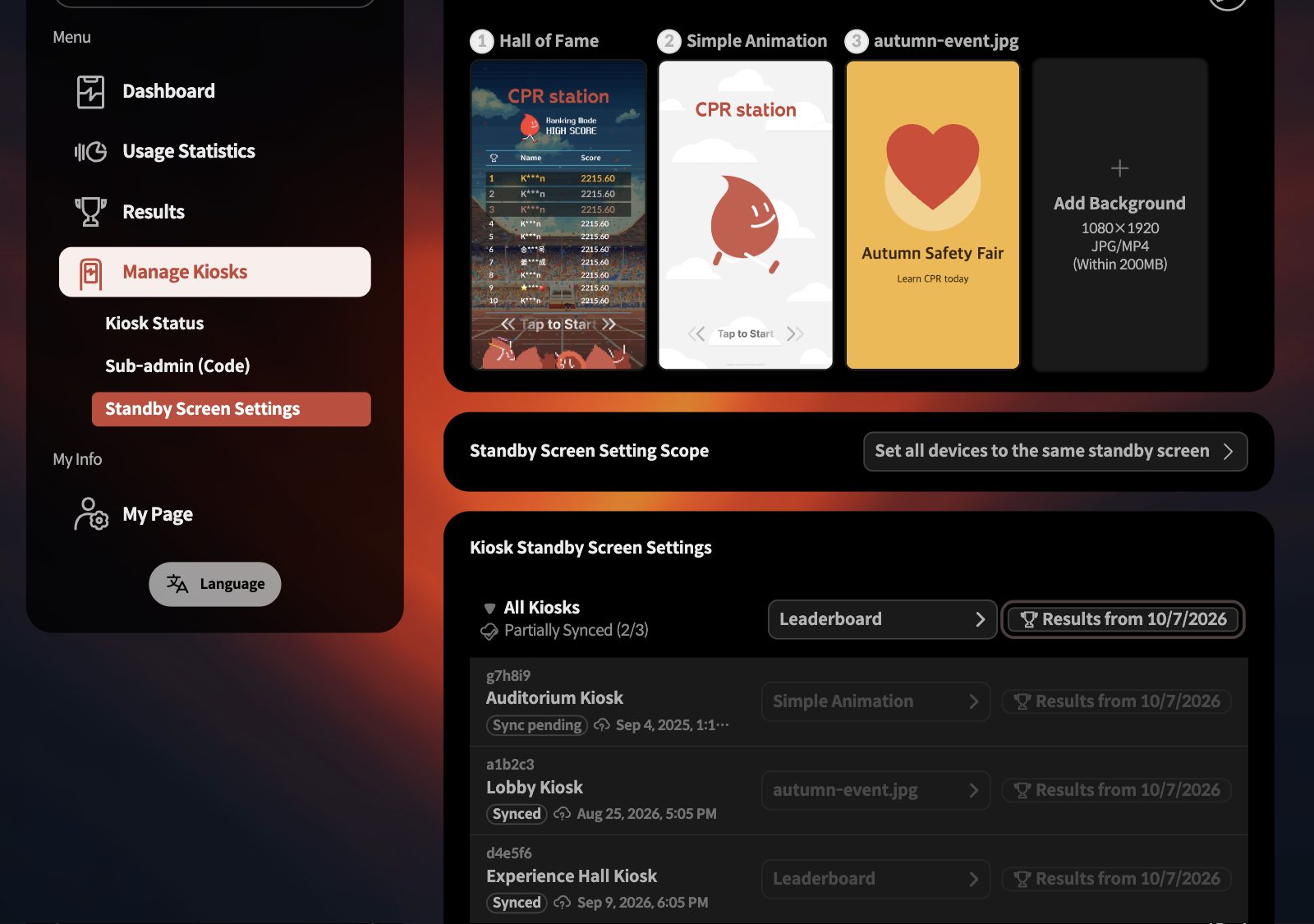
BA single kiosk
1Open Standby Screen Setting Scope and switch it to Set standby screen by device.
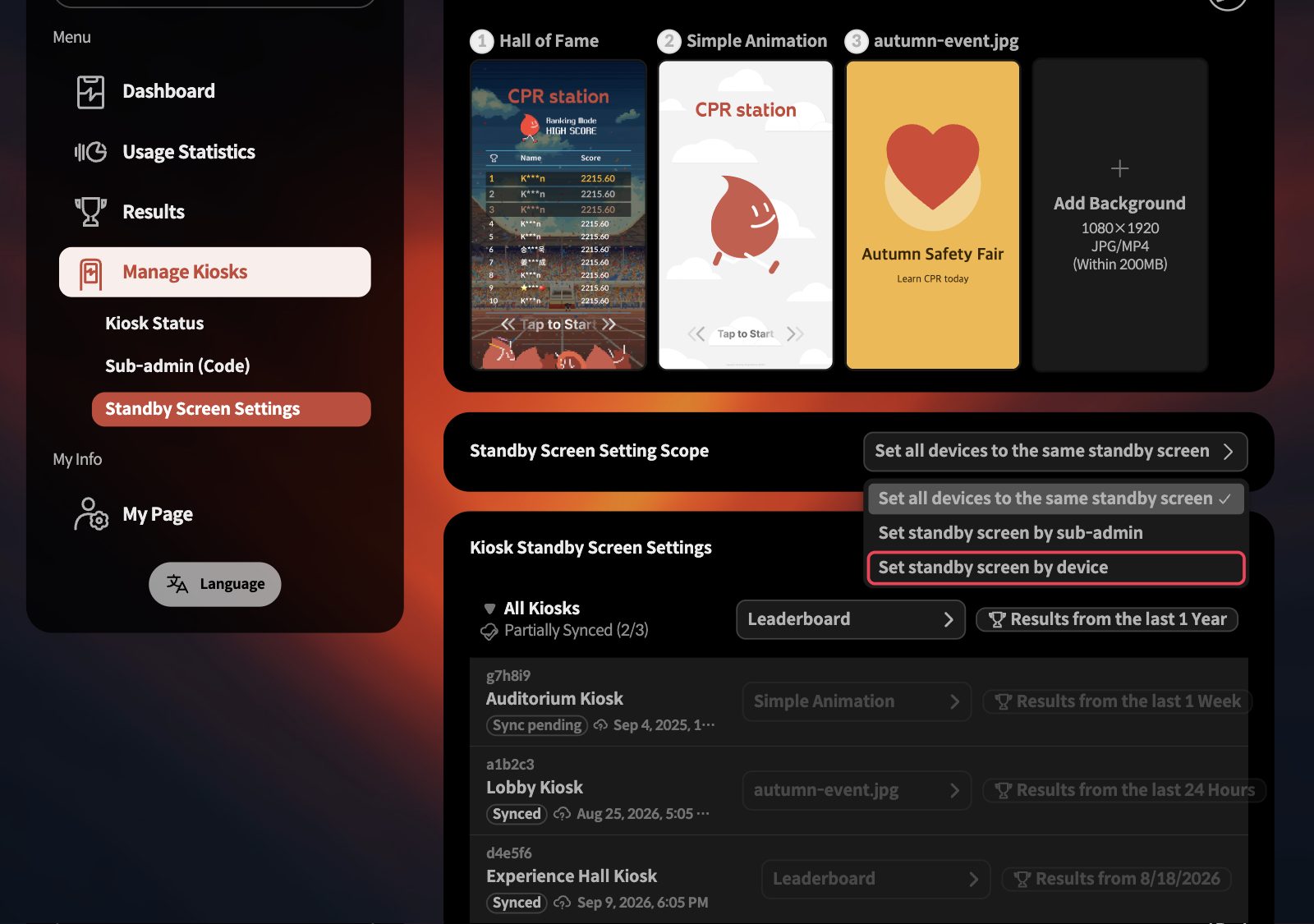
Device rows only respond in this scope. In the all-devices scope they stay dimmed and locked.
2Click the trophy button on the row of the kiosk you want to reset.
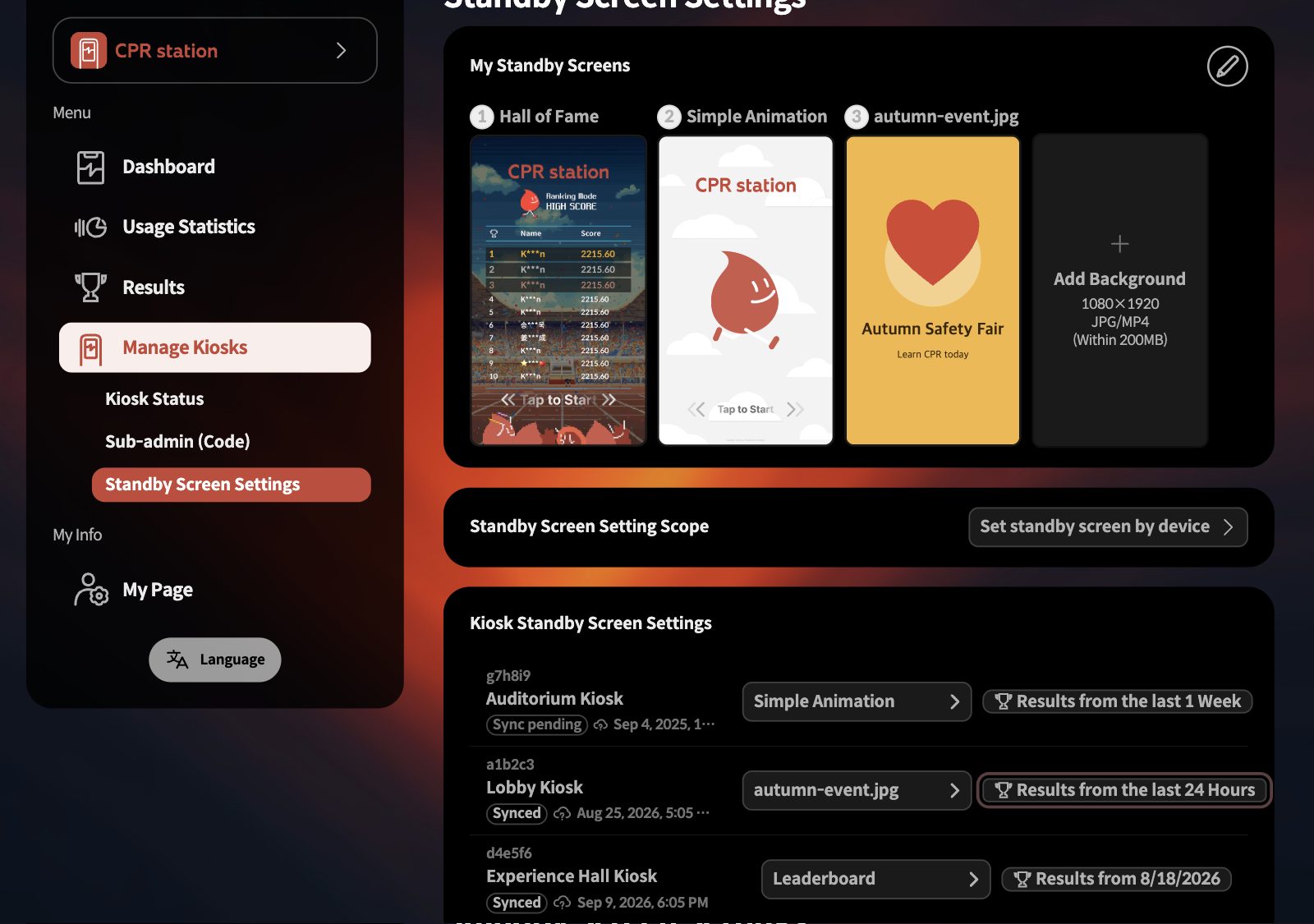
3Check the device name in the dialog, then choose Results since specific date, today, and Set.
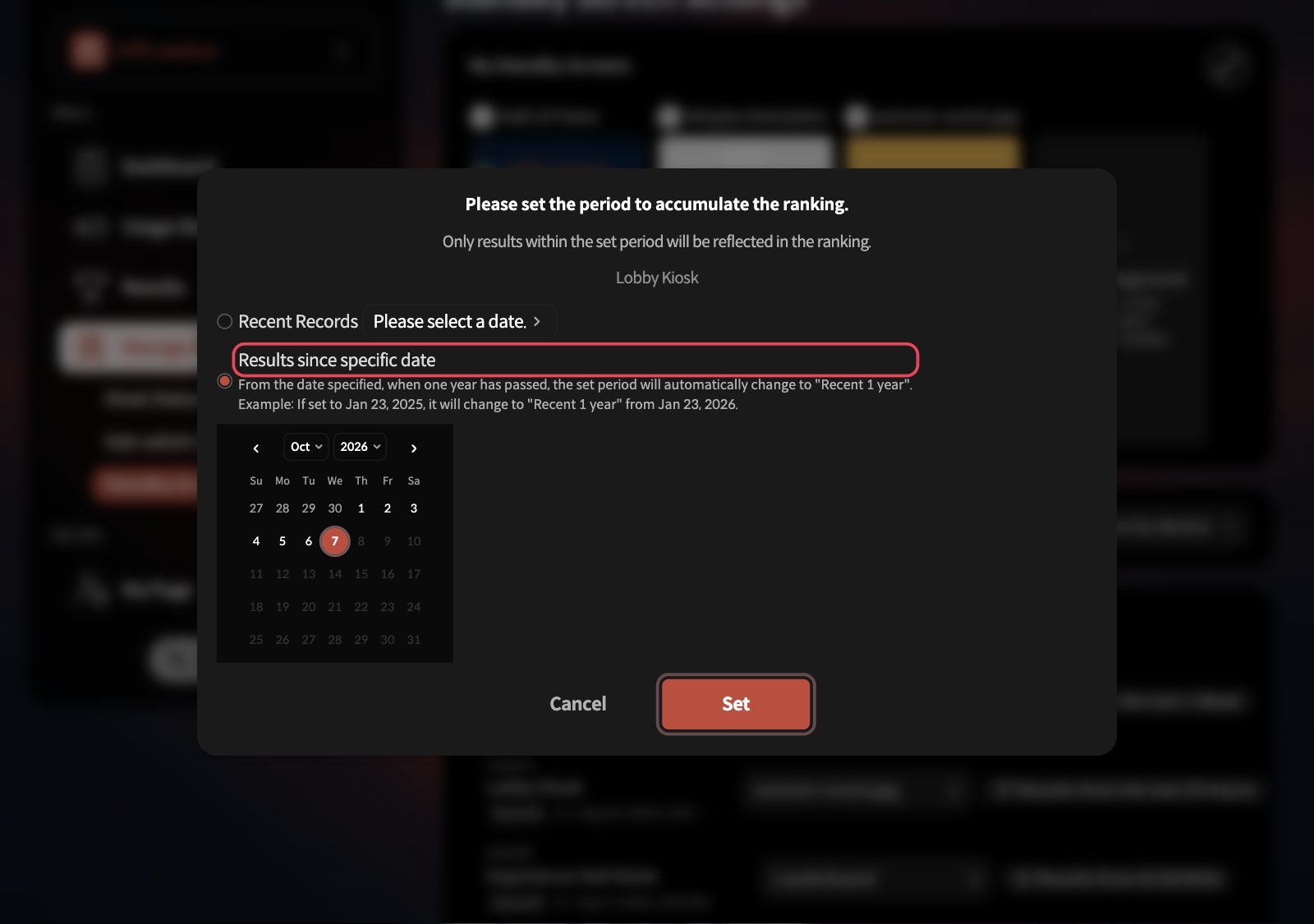
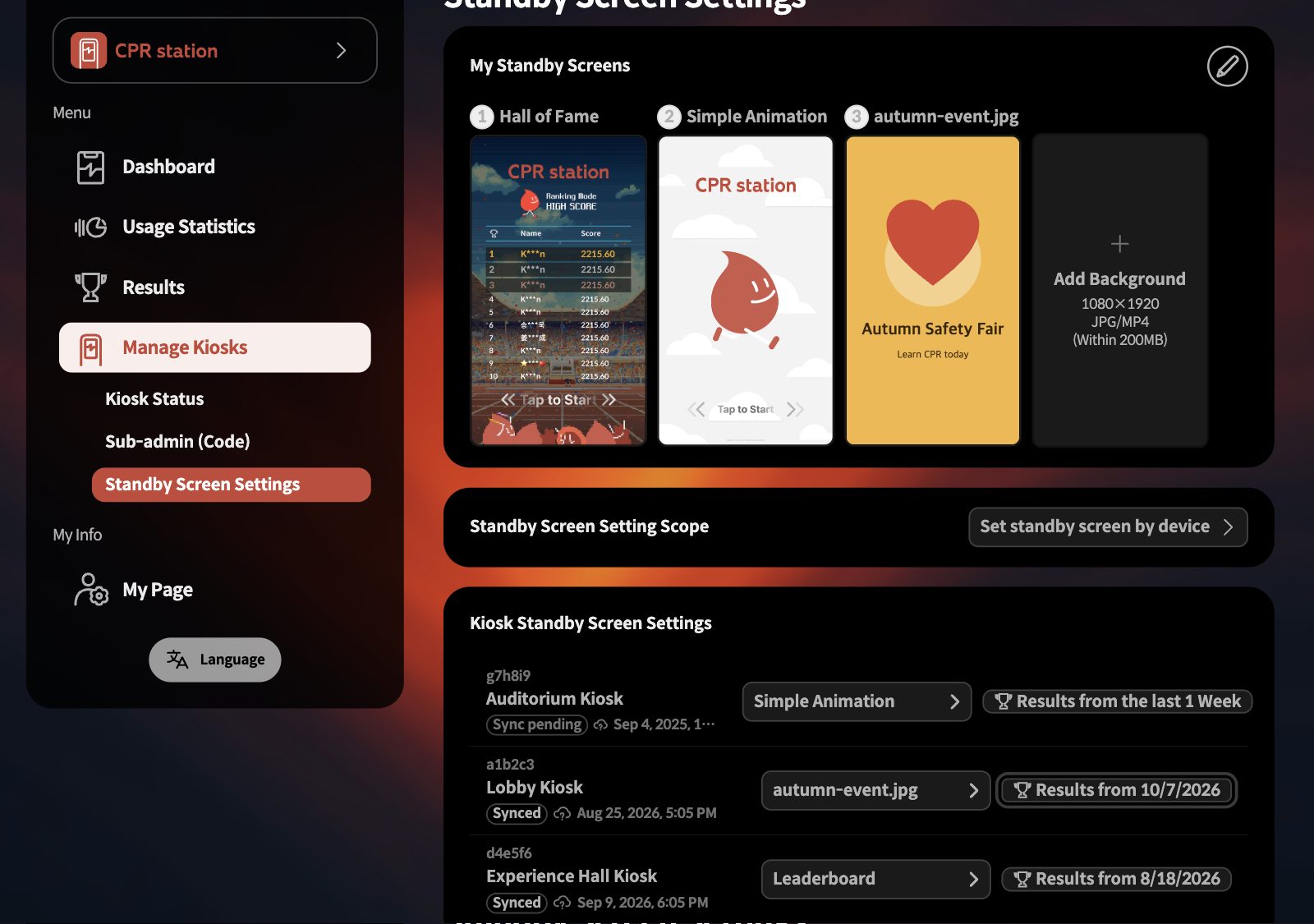
4You are done when only that kiosk's trophy button reads Results from today's date.
CIn the app · a single kiosk
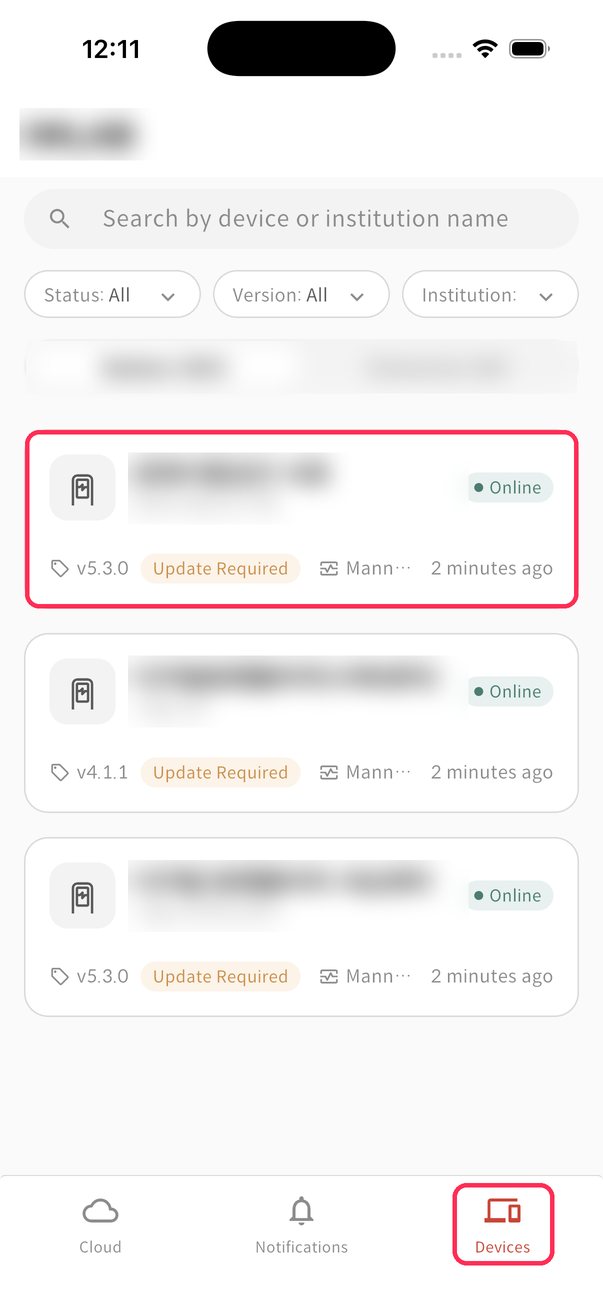
1On the Devices tab, tap the kiosk you want to reset.
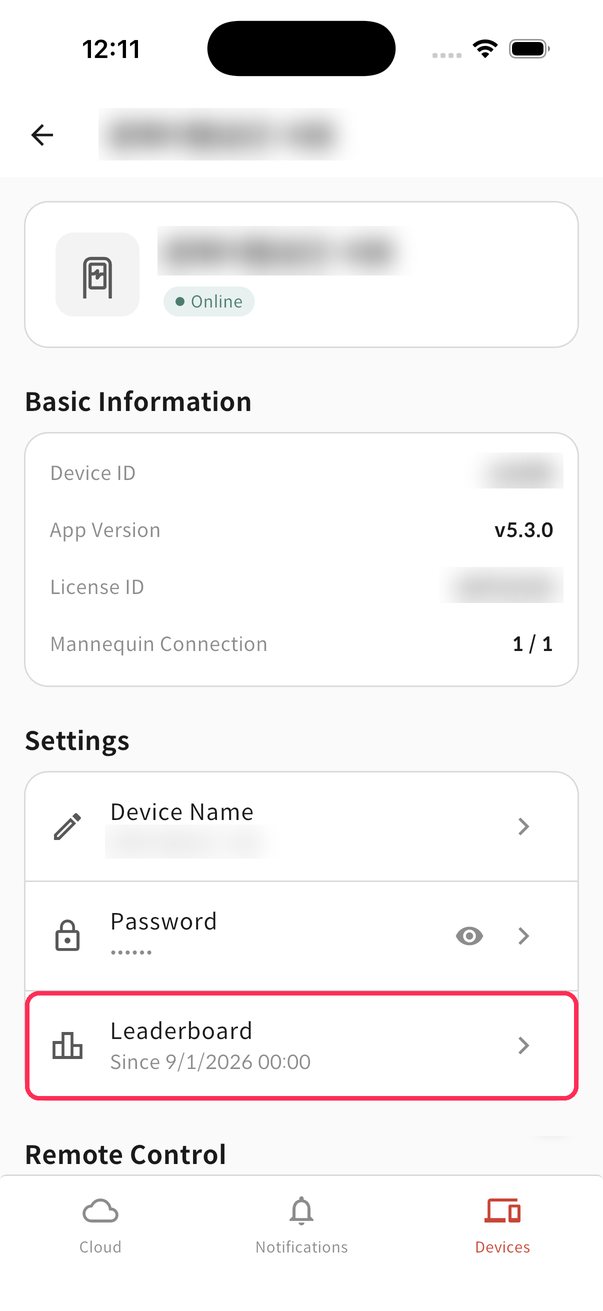
2Under Settings, tap Leaderboard.
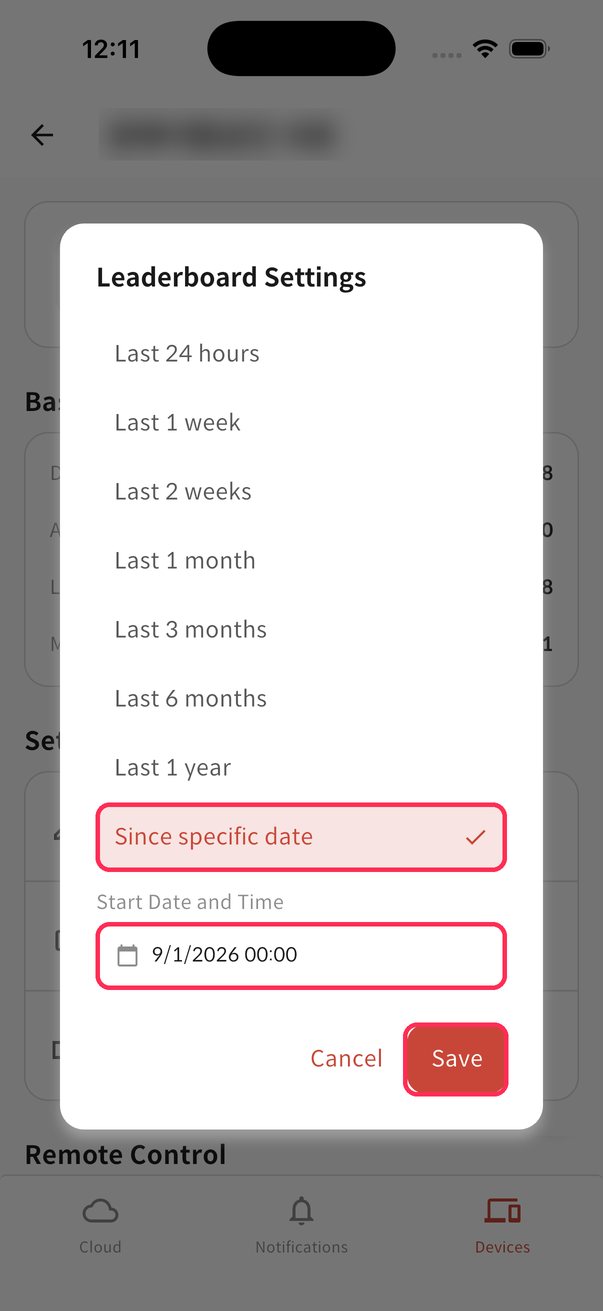
3Choose Since specific date, set the date and time to now, then tap Save.
No confirmation message appears — the text under Leaderboard changes when it is saved. If the kiosk is offline, the Settings card is dimmed and cannot be tapped.
DIn the app · all kiosks at once
1On the Cloud tab, tap the menu button at the top left.
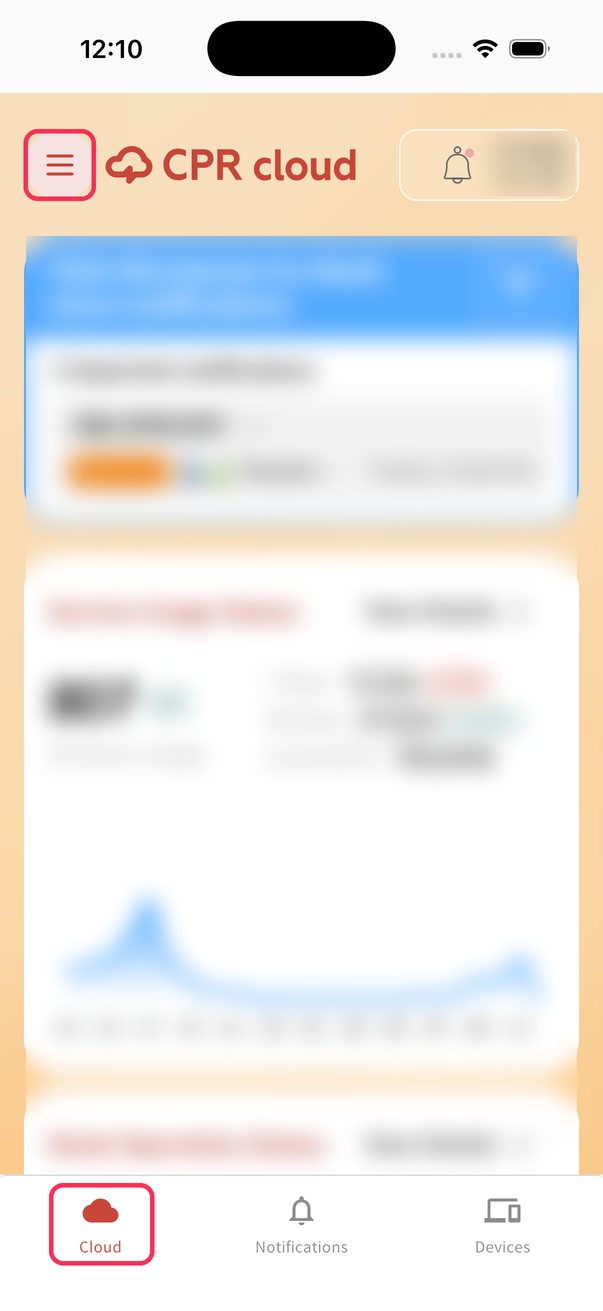
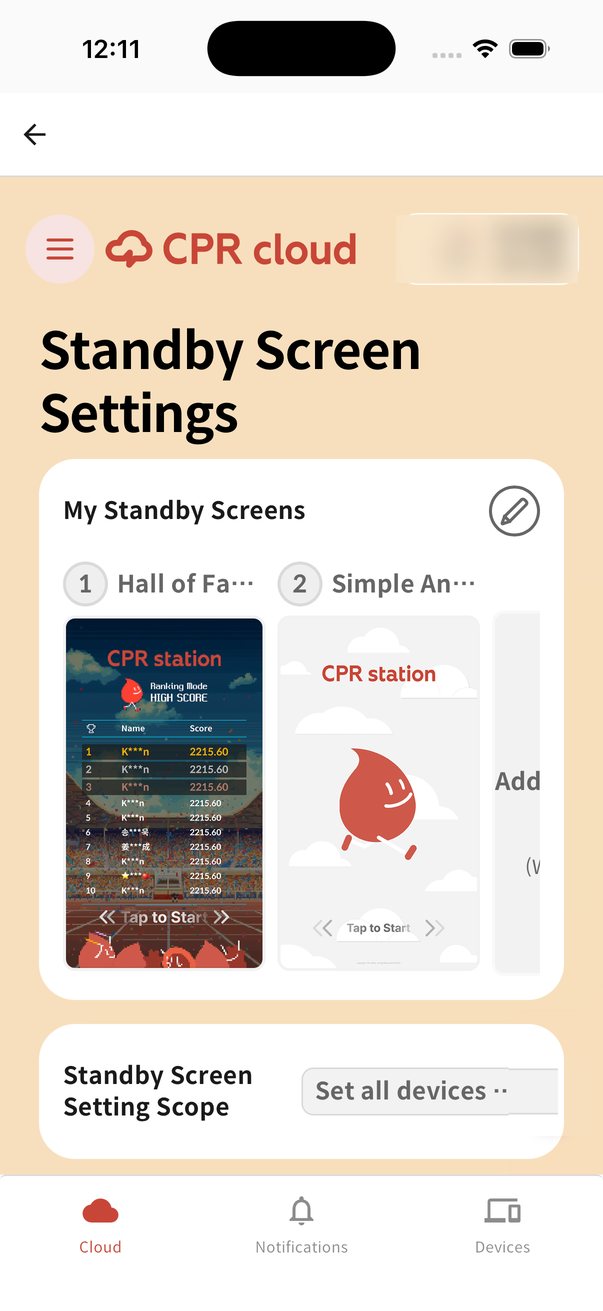
2Tap Manage Kiosks → Standby Screen Settings.
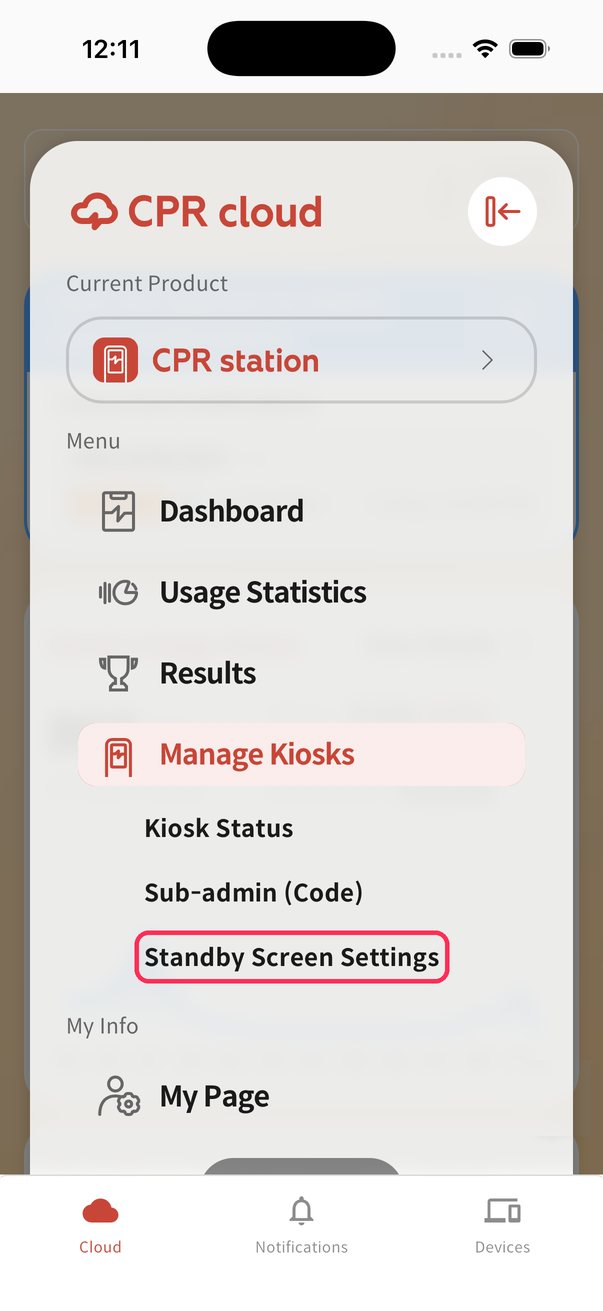
3The same screen as the web opens. Scroll down and continue exactly as in A.
If you get stuck
- Results from earlier today still show
- The web dialog works by date, so results from earlier today may remain. Use the app's Devices tab (C) and set the start date and time to the current time to exclude them.
- Device rows are dimmed and do not respond on the web
- The scope is set to all devices. Switch it to the per-device option as in the first step of B.
- The Settings card is dimmed in the app
- The kiosk is offline or powered off. Turn it on, connect it to the internet, and try again.
- A row is dimmed and asks for a version update
- The kiosk app is out of date. Update to CPR Station 5.1.0 or later (Enterprise 2.2.0 or later).
- The All Kiosks trophy button says “Varies by device”
- The kiosks have different periods. Click it and follow A to bring them all to the same date.
- I want the earlier ranking back
- In the same dialog choose Recent Records and pick a period such as one year — the earlier results return to the ranking.
- Does the date I set stay forever?
- One year after the date you set, the period automatically becomes the most recent year.
Organisation and device names in the screenshots are examples; some are blurred.