
Change the standby screen image
How to upload your own image or video and apply it to the kiosk standby screen — all kiosks at once, a single kiosk, or from the app.
There are two stages: upload the file, then apply it to the kiosk. Uploading alone does not change the screen.
Prepare the file
- Size 1080 × 1920 · portrait
- JPG image or MP4 video
- Up to 200MB · one file at a time
Upload the file first
1In the CPR cloud web menu, open Manage Kiosks → Standby Screen Settings and click Add Background to upload the file.
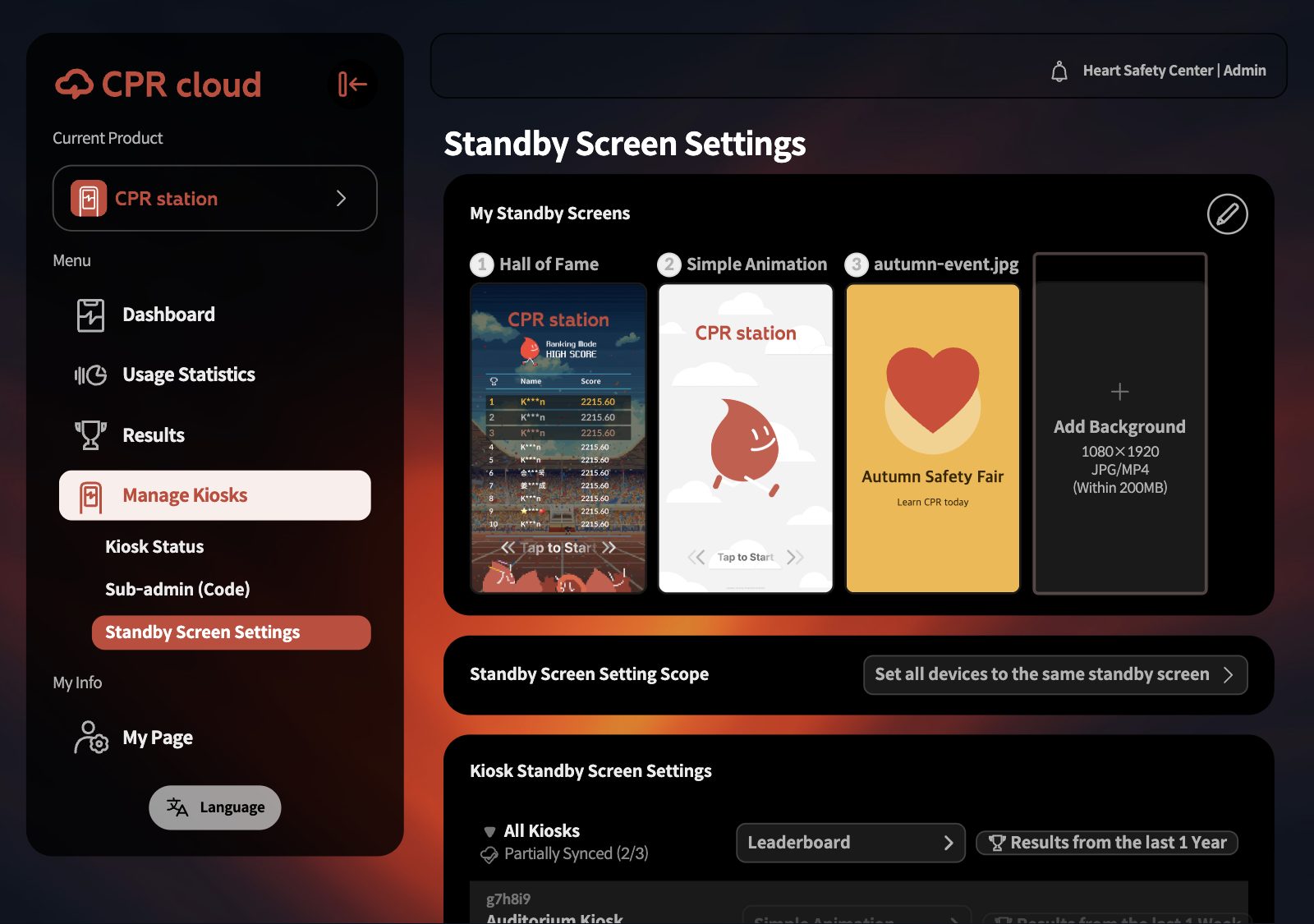
A message confirms the standby screen was added. The kiosk has not changed yet — apply it with A or B.
AAll kiosks at once
1On the All Kiosks row, open the list button and choose the file you uploaded.
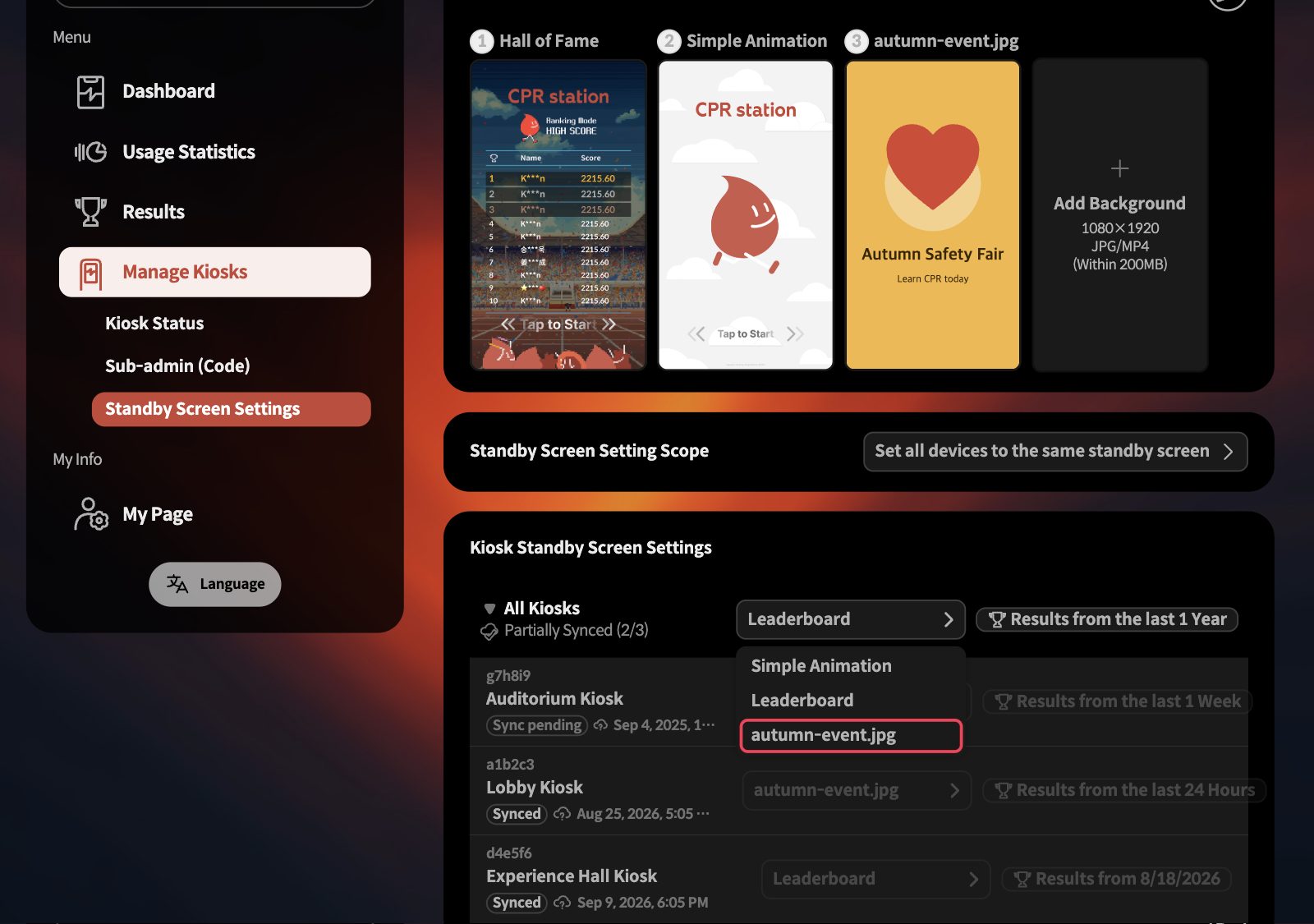
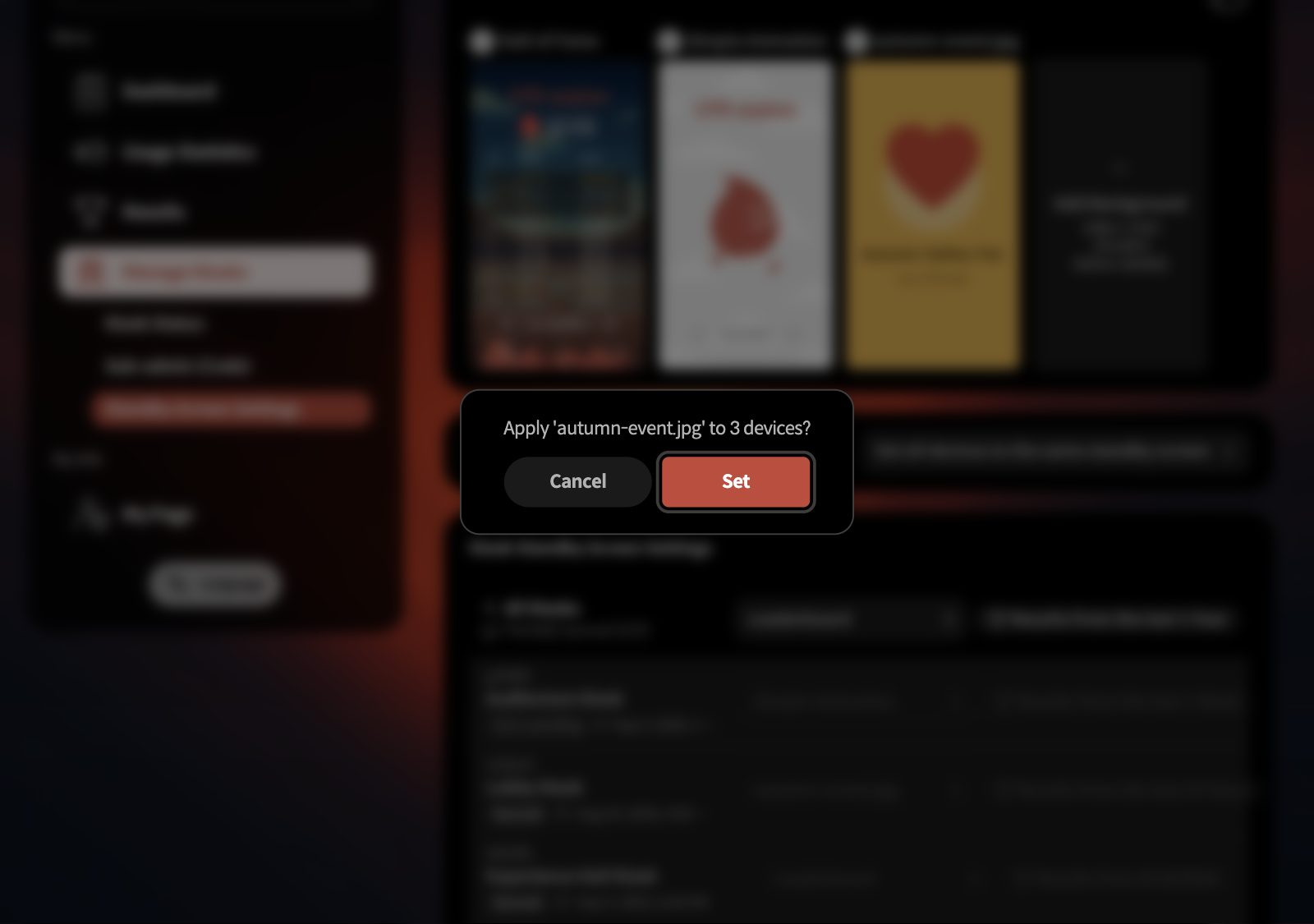
2Check the number of devices in the confirmation and click Set.
3It is applied when you see All Synced and Synced on each device.
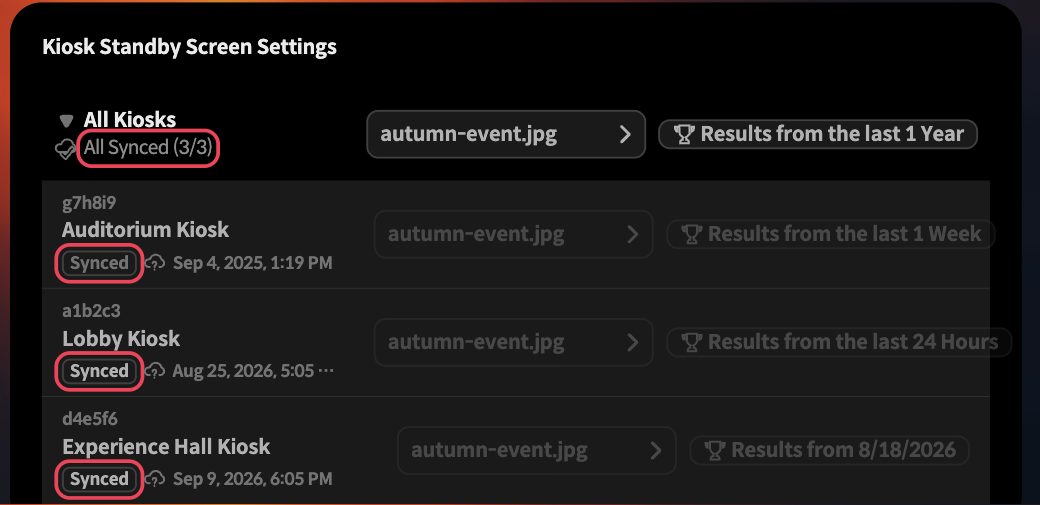
Right after applying, devices show Sync pending.
BA single kiosk
1Open Standby Screen Setting Scope and switch it to Set standby screen by device.
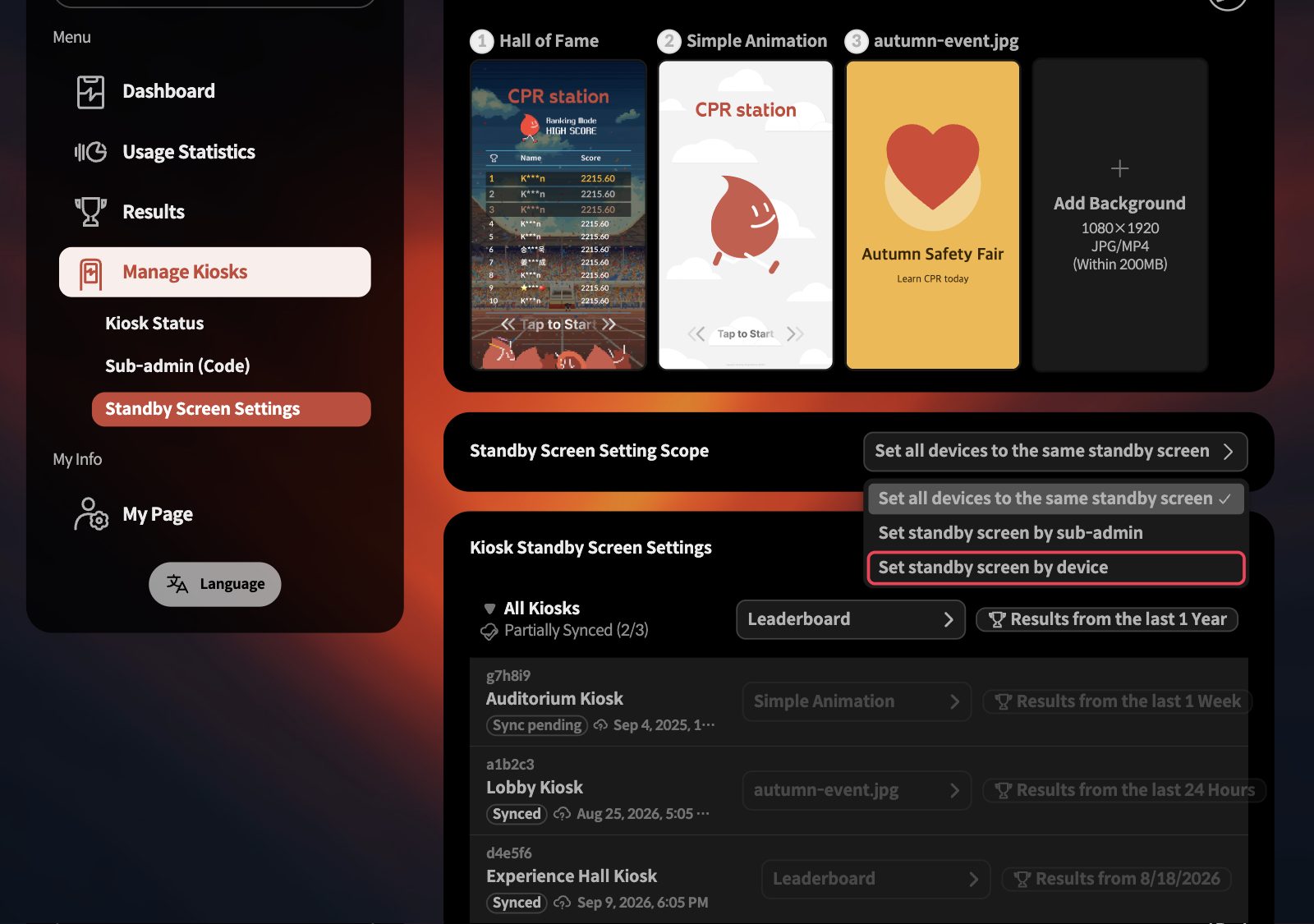
Device rows only respond in this scope. In the all-devices scope they stay dimmed and locked.
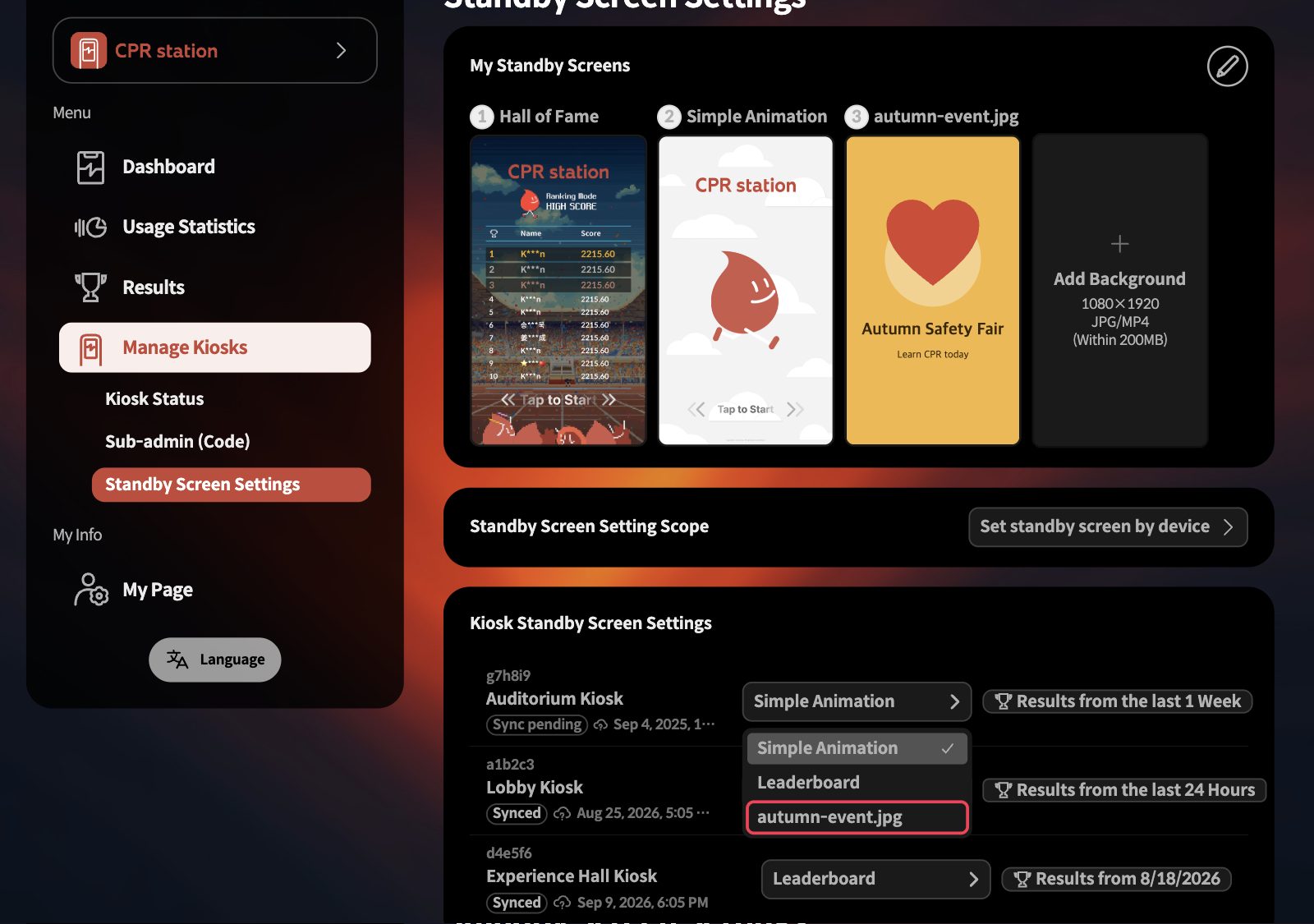
2On the row of the kiosk you want to change, open the list button and choose the file you uploaded.
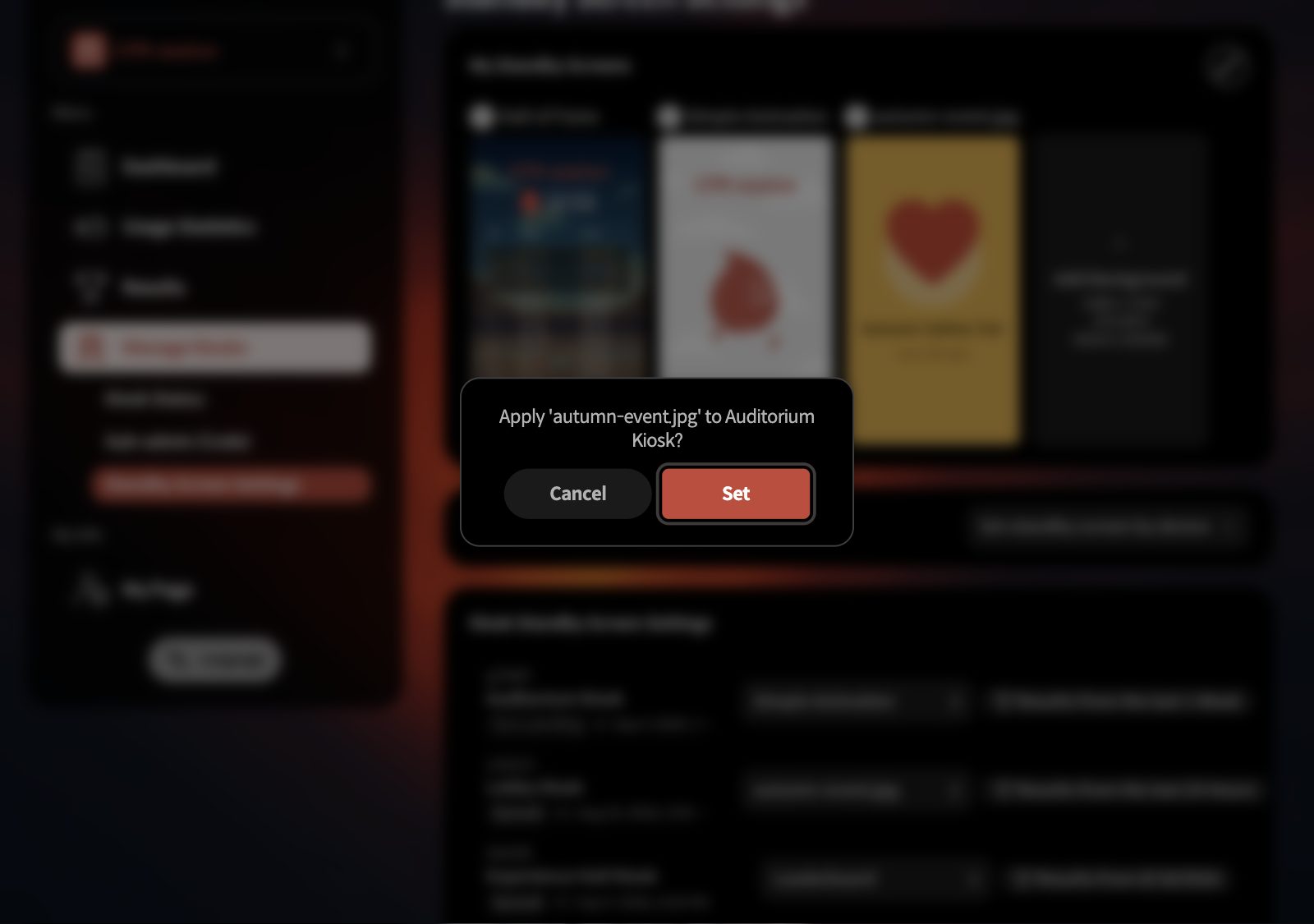
3Check the device name in the confirmation and click Set.
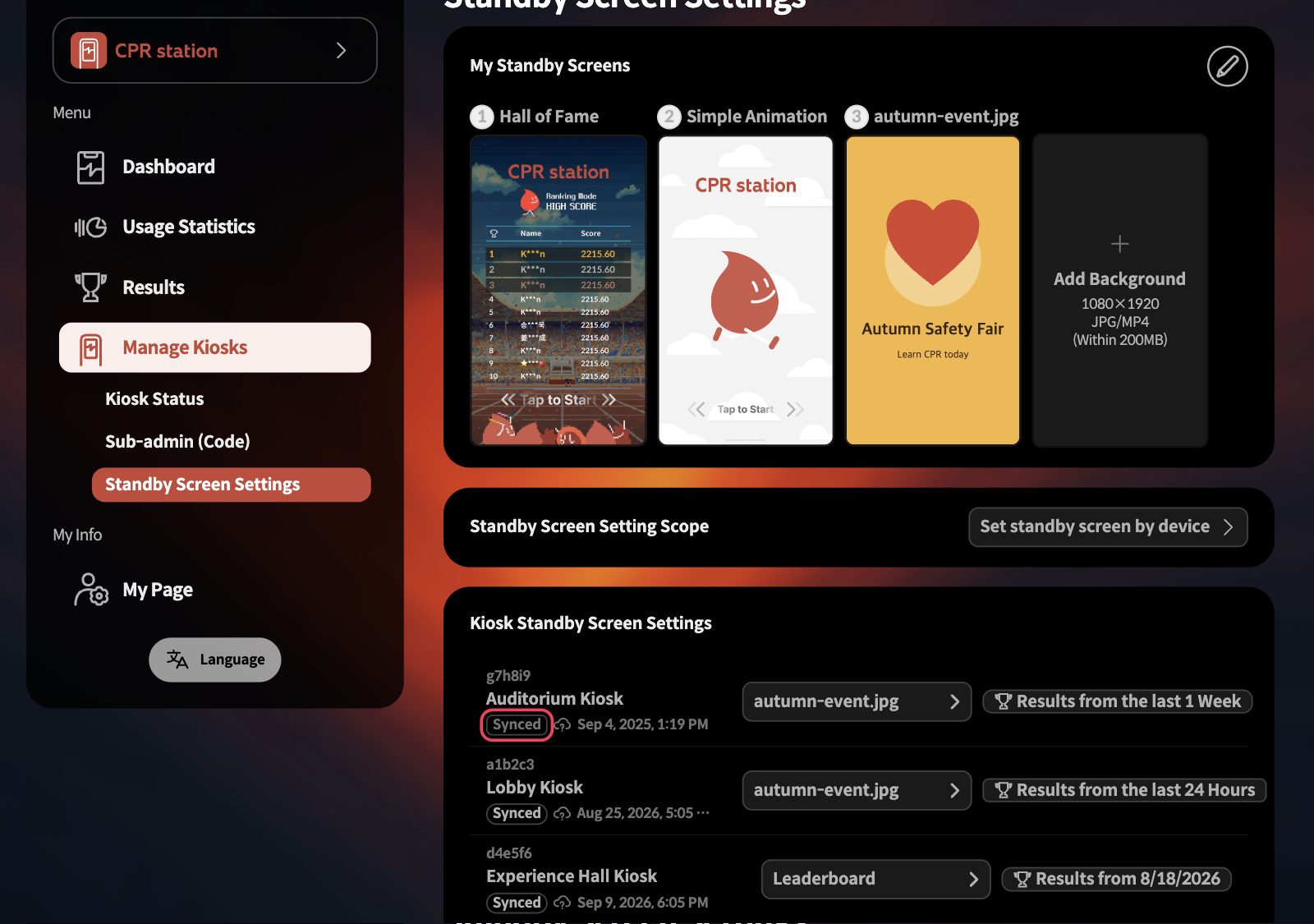
4It is applied when the badge under that device changes to Synced.
CIn the app
The app's Devices tab has no standby screen menu. Go through the Cloud tab instead.
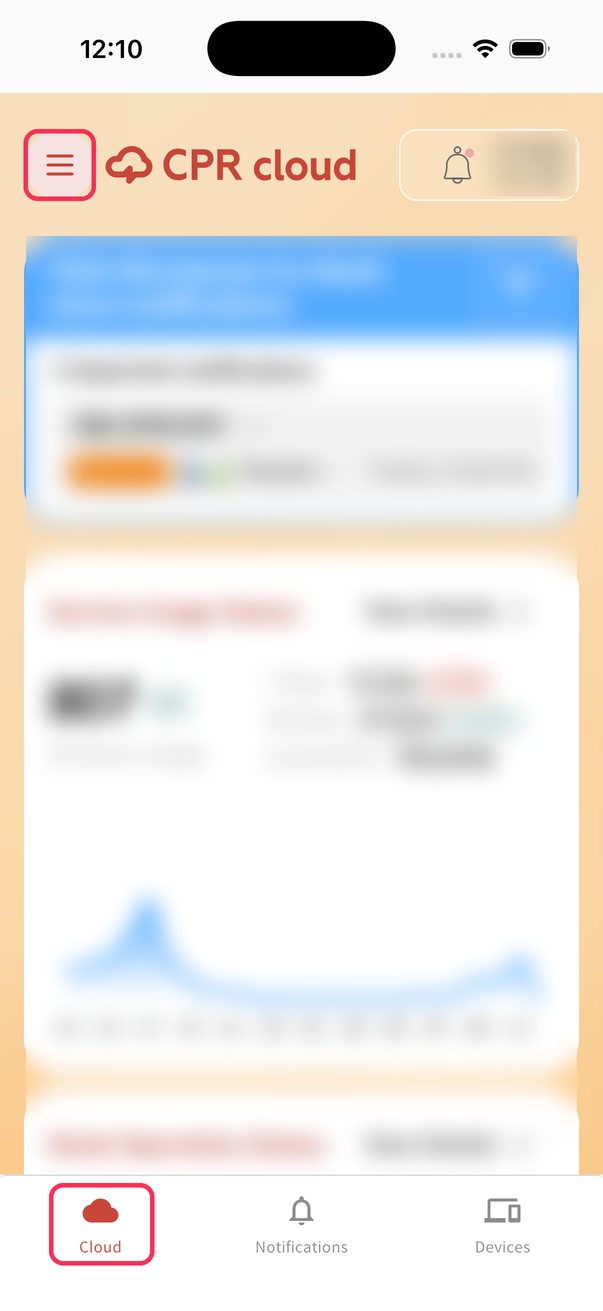
1On the Cloud tab, tap the menu button at the top left.
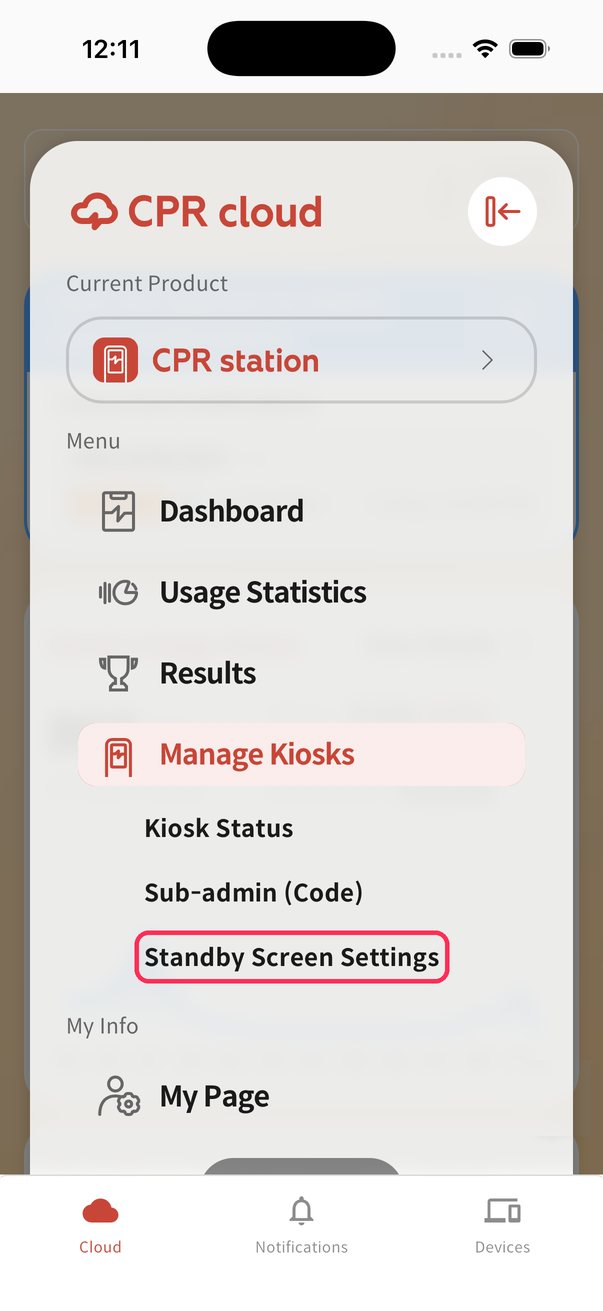
2Tap Manage Kiosks → Standby Screen Settings.
3The same screen as the web opens. Apply the screen exactly as in A or B.
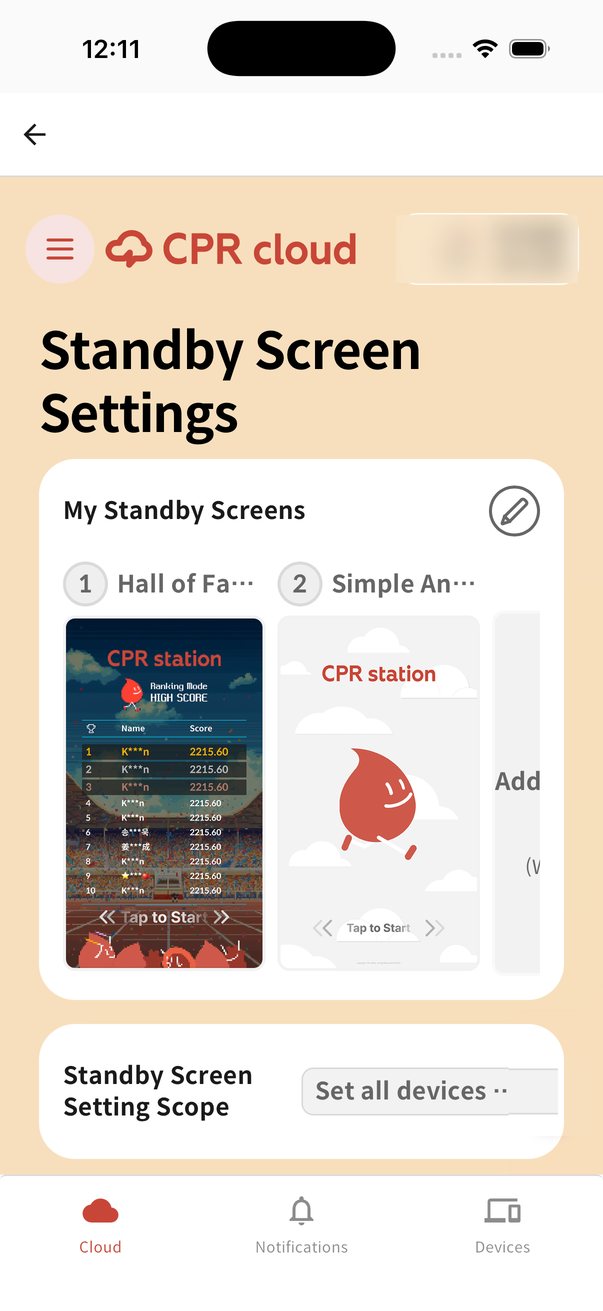
We recommend uploading new files from the web on a computer.
If you get stuck
- I uploaded a file but the kiosk has not changed
- Most often the screen was not applied. Choose the uploaded file from the list and confirm with Set.
- Device rows are dimmed and do not respond
- The scope is set to all devices. Switch it to the per-device option as in the first step of B.
- It stays on Sync pending
- The kiosk is off or disconnected. It applies once the kiosk is on and online. The page only checks automatically for 10 minutes — refresh it after that.
- My video shows Compressing
- That is expected. Videos take up to about a minute to process, after which you can choose them from the list.
- The list button asks for a version update
- The kiosk app is out of date. Update to CPR Station 5.1.0 or later (Enterprise 2.2.0 or later).
- I want the Hall of Fame screen back
- Choose Leaderboard in the list. It is the same screen as Hall of Fame in the gallery above.
- I get an unsupported format or 200MB limit error
- Convert the file to JPG or MP4, reduce it below 200MB, and upload it again.
Organisation and device names in the screenshots are examples; some are blurred.